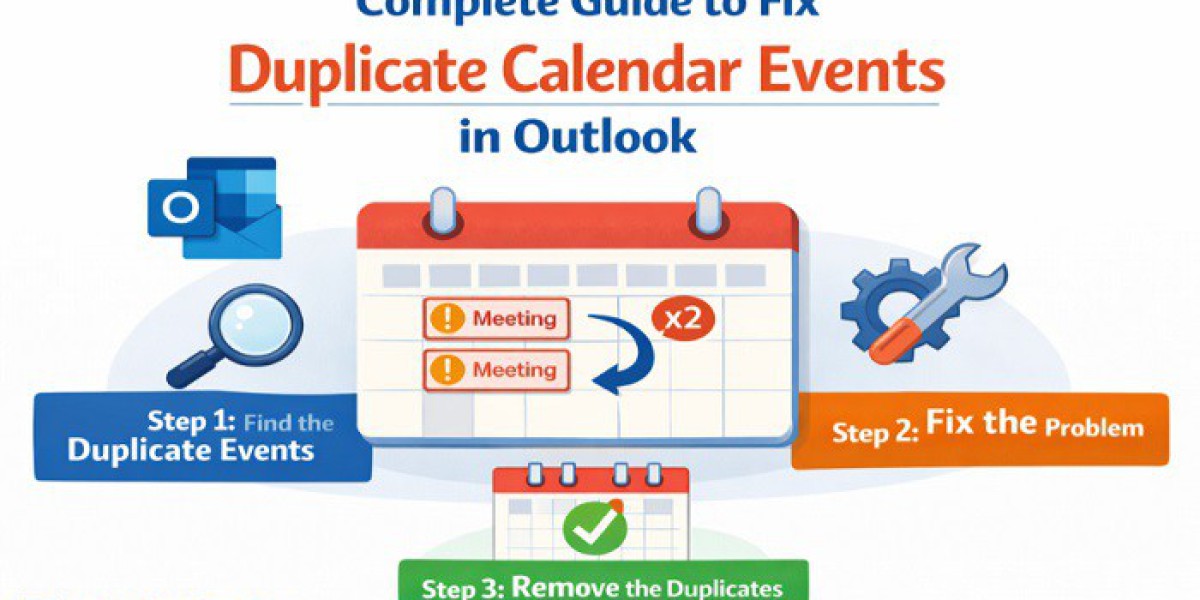
Calendar chaos is more common than we admit. One meeting shows up twice. A reminder pops up three times, and suddenly your schedule looks busier than it actually is. If you use Microsoft Outlook regularly for professional or personal planning, duplicate calendar events can quickly turn into a productivity nightmare.
The complete guide explains duplicate calendar events in Outlook by showing their reasons and providing methods to fix the problem and create permanent solutions. The process will be made easier through our recommendation of an automated solution which will handle all tasks.
Why Do Duplicate Calendar Events Appear in Outlook?
Before solving the issue, it’s important to understand the problems. Duplicate events normally occur because of synchronization problems together with account setup errors and data transfer operations.
Here are the most common reasons:
- Syncing Outlook with multiple devices (mobile + desktop)
- Re-adding the same email account multiple times
- Importing PST files more than once
- Server synchronization errors (Exchange/IMAP)
- Calendar sharing conflicts
- Third-party add-ins interfering with Outlook
If Outlook tries to combine data from two different sources in a calendar, sometimes it will assume both sources are accurate and duplicate entries, rather than merging them.
Signs You Have Duplicate Calendar Issues
Don't worry whether the records are actually duplicates; check through these red flags pertinent to duplication:
- The same meeting appears multiple times on the same date and time.
- Recurring meetings duplicate across weeks
- Calendar reminders trigger repeatedly
- Calendar size increases unusually
- Outlook performance becomes slow
If you notice any of these symptoms, it’s time to clean up your calendar.
Manual Methods to Remove Duplicate Calendar Events
1. Clean Up Using List View
In List View, Outlook offers an easier strategy to help identify duplicates.
Steps:
- Open Outlook.
- Go to the Calendar section.
- Click on the View tab.
- Select Change View → Choose List.
- Sort by Subject or Start Date.
You can now easily detect the same records and delete them in the manner you prefer.
Best for: Small number of duplicate events
Limitation: Time-consuming for large calendars
2. Remove Duplicates After Importing PST
If duplicates appear after importing a PST file:
- Delete the imported calendar folder.
- Re-import the PST file.
- Choose the “Do not import duplicates” option.
This prevents Outlook from copying identical entries again.
3. Rebuild Your Outlook Profile
Sometimes the article mentions an issue with Outlook profile configuration.
Steps:
- Close Outlook.
- Open Control Panel.
- Go to Mail → Show Profiles.
- Create a new profile.
- Add your account again.
This resolves synchronization conflicts in many cases.
4. Disable Conflicting Add-ins
Third-party add-ons can bring about duplicate calendars.
- Go to File → Options → Add-ins.
- Disable unnecessary add-ins.
- Restart Outlook.
There's a good chance that the add-in was the one causing the recurrence of duplicates.
Automated Solution: Fix Duplicate Calendar Events in Outlook
If the manual method is too risky for the original files, then use the best tool like TrustVare Outlook Duplicate Remover. The software quickly fix duplicate calendar events in Outlook without any issues. It will scan all Outlook files like email, notes, calendar, events, contacts, etc, find duplicates and remove them without losing original data. The tool handles many duplicate calendar events in Outlook without downloading any application. Users can use the free trial before buying this tool.
Smart Features That Make This Tool Stand Out
- Smart duplicate detection using multiple matching fields
- Removes duplicate calendar events, emails, contacts, tasks, and more
- Supports Outlook profiles and PST files
- Custom filtering options for accurate results
- Bulk folder processing in one go
- Maintains original folder structure
- Fast performance even with large mailboxes
- Simple and user-friendly interface
- Generates a summary report after completion
How to Use It?
Install the Software
First, download the tool and complete the installation on your Windows system.
Open the Application
Launch the tool in the system or start menu.
Connect Your Outlook Data
Now choose your data source:
- Load your active Outlook profile
- Add a PST file manually from your system
Pick the Folders to Clean
Select the specific folders you want to scan — such as Calendar, Inbox, Contacts, Tasks, etc.
Set Duplicate Criteria
Choose how duplicates should be identified (for example: subject, start date, end date, location, and more).
Run the Removal Process
Click the "Remove Duplicate Emails" button automatically.
Final Thoughts
The existence of duplicate calendar events in Outlook creates a minor problem that can develop into serious issues, affecting your entire schedule and confusing you while consuming your precious time. The first step requires you to comprehend the underlying cause. The simple cases become solvable through manual methods, while the large-scale duplication problems require professional solutions like the Outlook Duplicate Remover Tool, which can simplify the entire process with accuracy. It will delete all duplicate calendar events without wasting time.