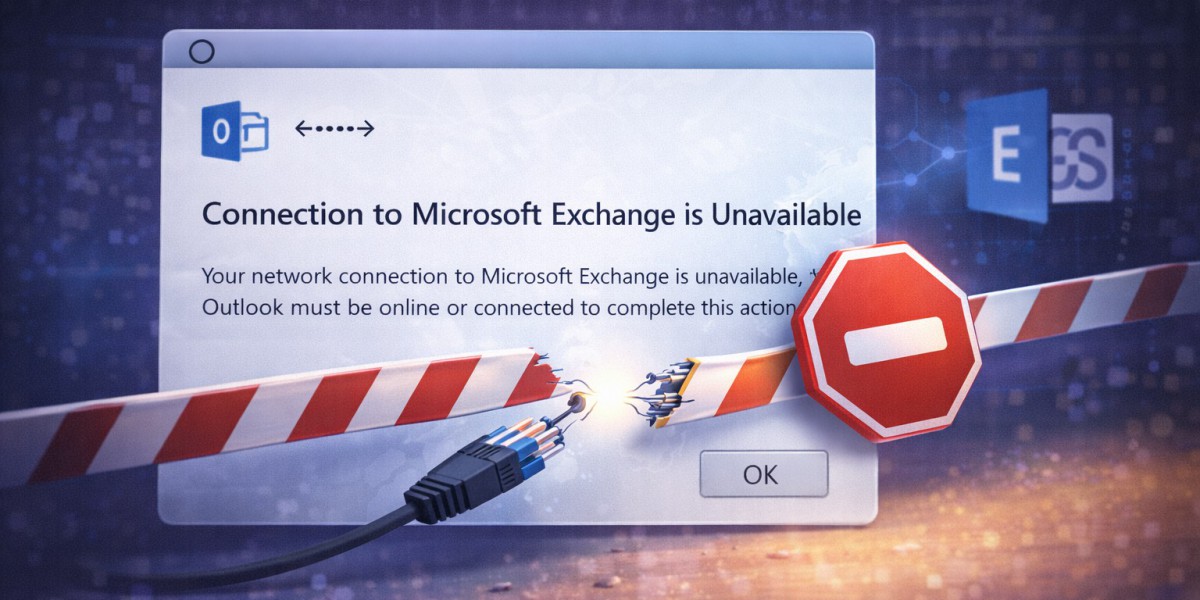
If you use Microsoft Outlook and get the error message "Connection to Microsoft Exchange is Unavailable," it can completely stop your work. You might not be able to open your mailbox, send or receive emails, or even set up your account. We'll talk about what this error means, why it happens, and how to fix it step by step in this blog.
What Is the “Connection to Microsoft Exchange is Unavailable” Error?
This error happens when Microsoft Outlook can't connect to the Exchange Server. Simply put, Outlook and the Exchange Server can't talk to each other properly.
You may encounter this error in situations such as:
- When starting Outlook
- While configuring a new Outlook profile
- After server migration
- When the OST file becomes corrupted
- If the Exchange server is temporarily unavailable
Common Causes of This Error
Knowing what caused the problem can help you find the right fix. These are some of the most frequently encountered ones:
1. Internet Connectivity Issues
Outlook needs a stable internet connection to talk to the Exchange Server. This error could happen if the connection is weak or unstable.
2. Corrupted Outlook Profile
If your Outlook profile is broken or set up incorrectly, it might not be able to connect to the server.
3. Corrupt or Damaged OST File
The OST (Offline Storage Table) file keeps mailbox data in sync on your computer. Outlook might not connect or sync correctly if it gets corrupted.
4. Exchange Server Downtime
There may be connection problems if the Exchange Server is being worked on or is down for a short time.
5. Incorrect DNS or Network Configuration
Outlook can't talk to the server if the DNS settings are wrong, the firewall is blocking it, or there are problems with the network.
How to Fix the "Connection to Microsoft Exchange is Unavailable" Error
Here are some useful things you can do to fix the problem.
Method 1: Check Your Internet Connection
Always check your basic connectivity before trying more advanced troubleshooting. Outlook needs a steady internet connection to talk to the Exchange Server. This error can happen if the network goes down, even for a short time. Making sure that everything is connected properly can quickly get rid of the most obvious cause.
Steps:
- Make sure your internet connection is stable.
- Restart your router if needed.
- To check that you are connected, open a website in your browser.
- Try switching between Wi-Fi and LAN to test the connection.
Method 2: Restart Outlook and Your System
Outlook may not be able to connect to the server if there are temporary problems, conflicts with background services, or updates that aren't finished. When you restart Outlook or your computer, all of its services are refreshed, which can fix small technical problems without having to do more in-depth troubleshooting.
Steps:
- Shut down Outlook completely.
- Make sure that no Outlook processes are running by opening Task Manager.
- Restart your computer.
- Start Outlook again.
A simple restart can sometimes fix temporary problems.
Method 3: Create a New Outlook Profile
One of the most common reasons for Exchange connection errors is a corrupted Outlook profile. Outlook can fix problems with misconfiguration or corruption by creating a new profile. This lets it start over with the configuration settings.
Steps:
- Start the Control Panel.
- Press Mail.
- Choose Show Profiles.
- To make a new profile, click Add.
- Fill in the information for your email account.
- Make the new profile the default one.
Check to see if the problem is fixed by opening Outlook again.
Method 4: Disable and Re-enable Cached Exchange Mode
Cached Exchange Mode keeps a copy of mailbox data on your computer in an OST file to make things run faster. But if there are problems with synchronization, turning off this mode for a short time can help figure out if the problem is with the local cache.
Steps:
- Start Outlook.
- Click on File, then Account Settings, and then Account Settings again.
- Choose your Exchange account.
- Click Change.
- Uncheck the box next to Use Cached Exchange Mode.
- Try the connection again after restarting Outlook.
You can restore it later if necessary.
What If the Exchange Server Is Not Accessible?
In some cases, the Exchange account may be turned off, deleted, or the server may not be reachable anymore. Outlook can't recreate the OST file in these situations, which makes it hard to get to the mailbox data.
In this case, it makes sense to convert the OST file to PST format. You don't need an Exchange connection to import PST files directly into Outlook.
One option is DailySoft OST to PST Converter, which can look for corrupted or inaccessible OST files and convert mailbox data like emails, contacts, calendars, and attachments into PST format. After the conversion, you can open the PST file in Outlook and get to your data even if you aren't connected to the server.
Basic Steps for Converting OST to PST
Here are the steps that are usually taken:
- Install the software and start it.
- Choose the corrupt or inaccessible OST files.
- Begin the scanning process.
- Look at the data from the recovered mailbox.
- Select PST as the format for conversion.
- Choose the place where you want to go.
- Finish the process of conversion.
- Open Outlook and bring in the PST file that was made.
This method makes sure that your data is still available even if the Exchange Server goes down.
Conclusion
The "Connection to Microsoft Exchange is Unavailable" error is a common problem with Outlook that can happen when the internet is down, profiles are corrupted, OST files are damaged, or the server is down. Check your internet connection, restart Outlook, make a new profile, or make a new OST file as a first step in troubleshooting.
If the Exchange Server is permanently down, you can convert the OST file to PST to get your mailbox data back and access it without the server. You can fix the problem quickly and keep working without losing any data if you take the right steps.